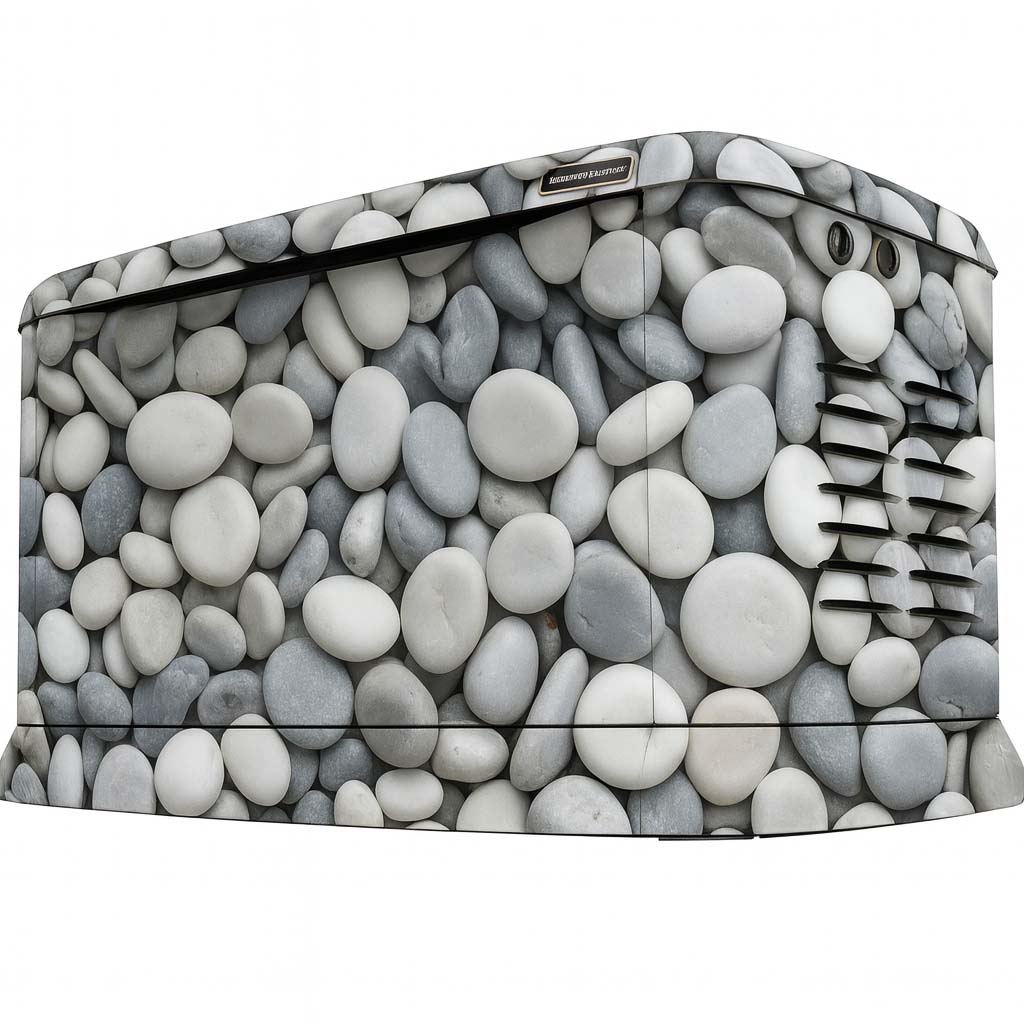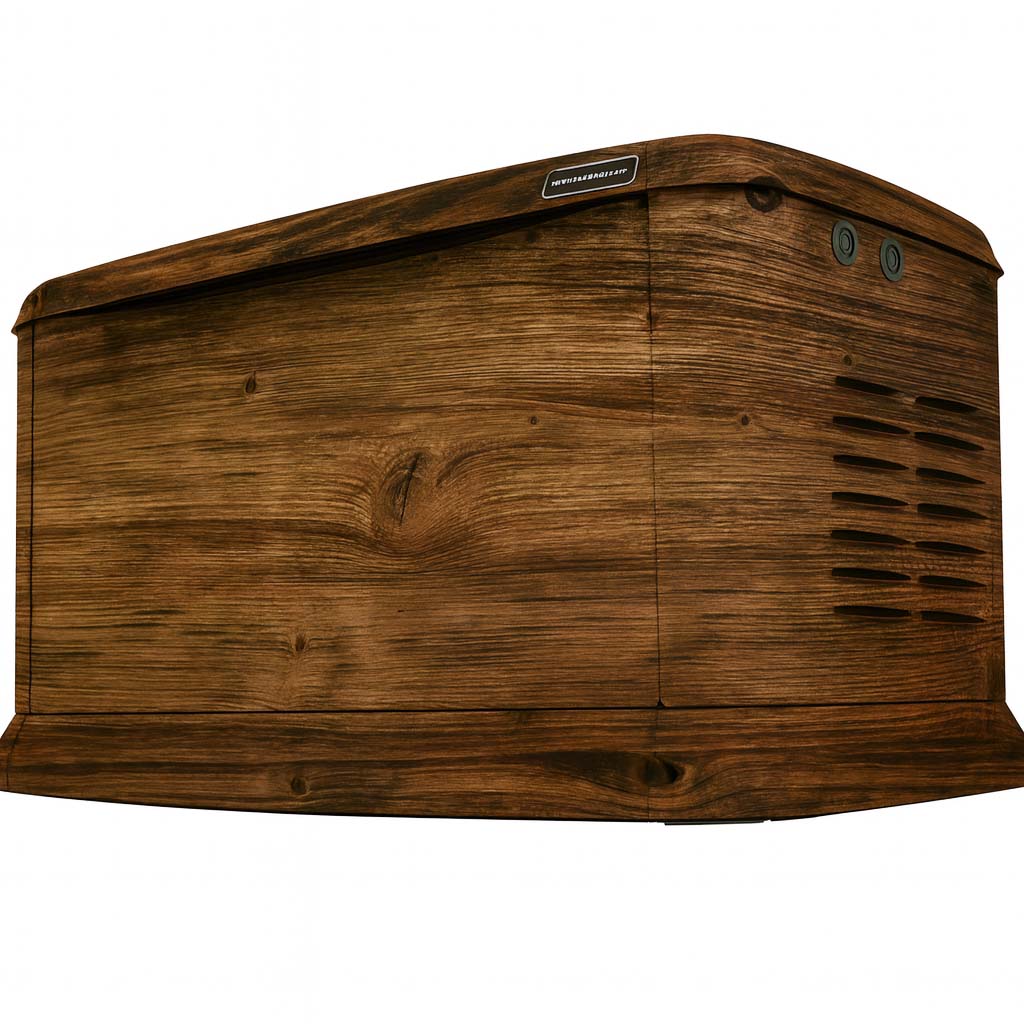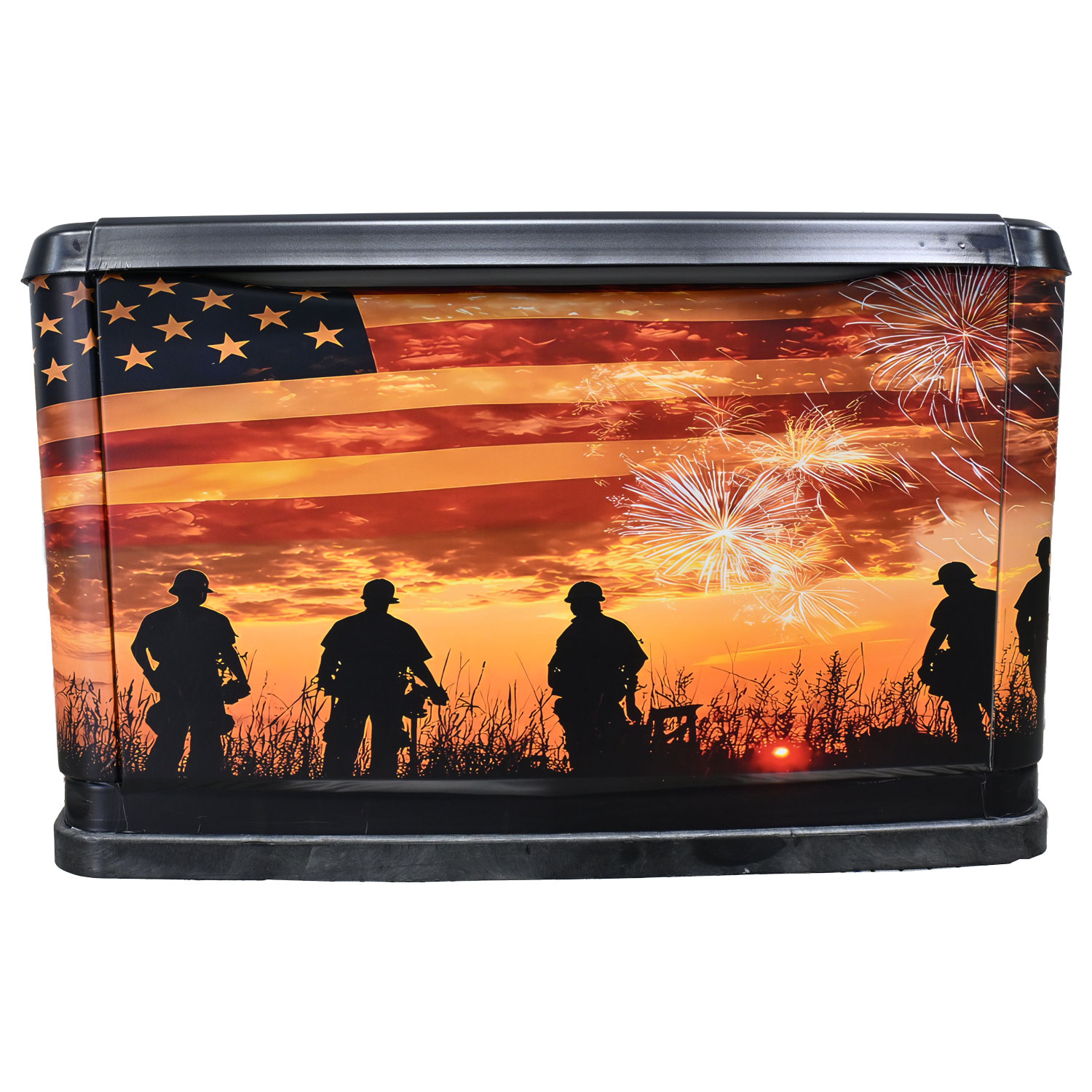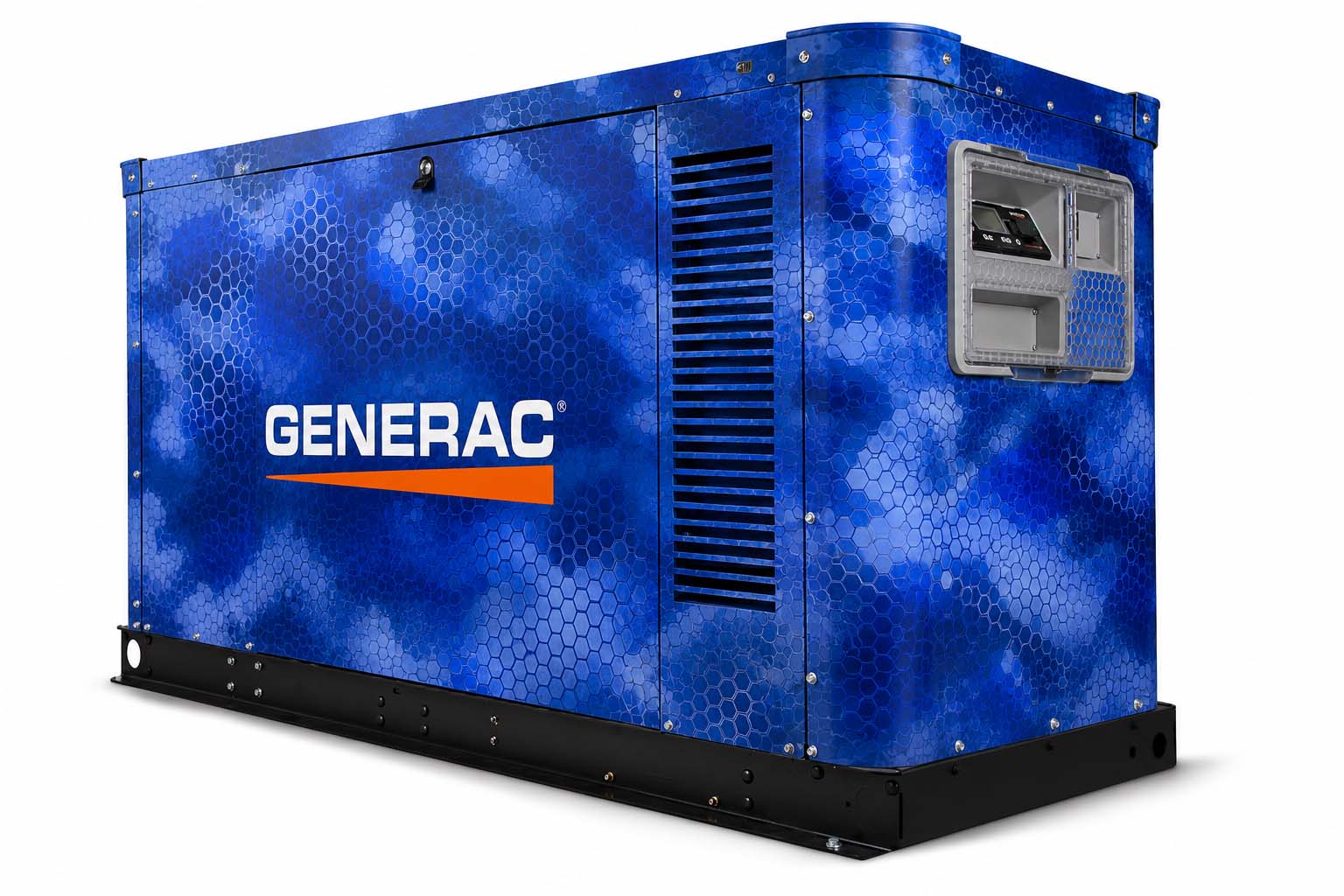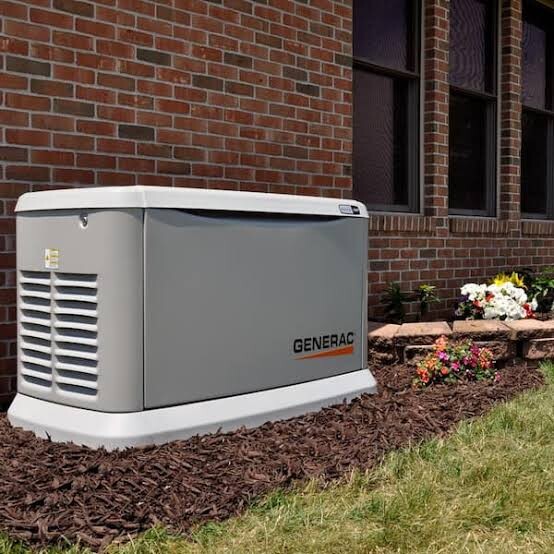
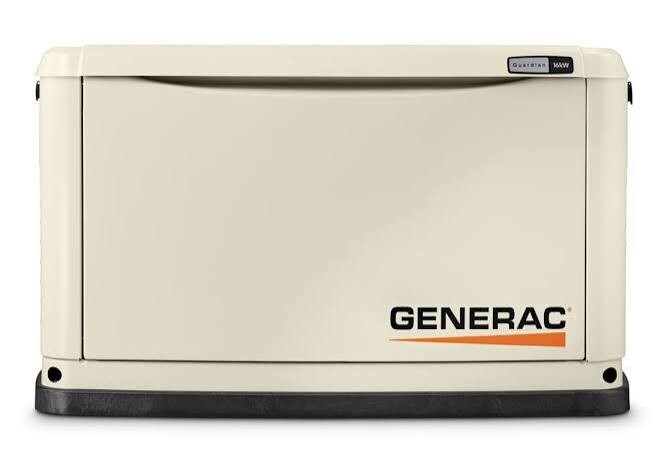
The Generator Studio helps you choose and communicate a direction. It is useful for comparing designs, trying your artwork and identifying the faces you care about. The next step is to connect that idea to the exact generator and a production layout that can be reviewed and approved for the real project.
Choose a direction and give it a clear name
Start in the design library and select the design you want to explore. In the Studio, compare the relevant views and note which elements you like. Give the saved concept a descriptive name, such as “Home Guardian — gray stone option,” so you can distinguish it from later experiments.
The default Guardian photograph is a visual reference. The editable side and top controls provide a concept view, and some library designs use an approximate style in the editable preview. Keep the original design name and your notes so the intended look does not depend on that approximation alone.
Save locally, then export a separate copy
Saving a concept keeps it in this browser on this device. It does not create a cloud design account or send the project to WYG. Export the editable design file and store it with the original artwork you used. Clearing browser data can remove local saves.
When returning to the project, use Saved Concepts in the same browser or import your exported design file. Keep a note of the chosen library design, the preferred faces and any requested changes. The export is a useful handoff reference, not a print-ready panel file or an order confirmation.
Bring the exact enclosure into the artwork review
- Full generator model and photos of the accessible exterior faces.
- The selected design name and exported concept.
- Which panels should be included, including any requested top coverage.
- Original logo files and exact wording for custom artwork.
- Notes about surface condition and the most important viewing angles.
These details help the production layout account for the actual panel edges, openings and separate faces. A design placed on the Top control does not confirm that your particular top panel can be included. Treat each view as part of the brief until the project scope and enclosure have been reviewed.
Approve the layout you intend to have produced
Compare the proposed production artwork with your brief. Check spelling, logo version, design direction, important details near panel edges and the list of included faces. Ask questions about any difference between the concept and the proposed layout before approving it.
Keep the approved revision with the agreed project scope. Concept images, including AI-assisted previews, may differ from the finished product in color, scale, placement and appearance. The Studio helps start that conversation; final artwork approval, production and installation arrangements are separate steps confirmed with WYG.
Related questions
Where are my Studio designs saved?
Saved concepts stay in this browser on this device. They are not a cloud account or a submission to WYG, and clearing browser storage can remove them. Export an editable design file to keep a separate copy.
Read the related guideCan I try a design on the top and each side?
The Studio includes Front, Right, Rear, Left and Top editing and artwork-placement options. These are concept controls. The panels that can be included on your actual generator still need model and layout review.
Read the related guideAre the generator images finished customer installations?
Images marked Concept Preview are design visualizations, including AI-assisted imagery. Final color, scale, placement, fit and appearance may vary. Reference photos show the generator itself and are identified separately.
Read the related guideTurn the idea into a project brief.
Choose a design, compare it in the Studio and keep your model details together for review.
On this test site, Studio saves stay in your browser and project drafts are downloaded, not submitted.