A custom wrap can begin with a logo, a theme or a rough idea. You do not need a finished production layout to start the conversation. What helps most is a clear collection of original artwork, approved wording and references that explain the intended look without leaving the designer to guess which version is correct.
Start with the best original files
Keep the original vector logo when it is available. Vector shapes can scale without becoming pixelated, while photographs and other raster images have a fixed amount of pixel detail. A logo copied from a small website image may look acceptable on a phone but need additional work for a large print.
For photographs, supply the original image rather than a screenshot of it. Ask for a review at the intended print size; a file extension or a large file size alone does not establish that the artwork is suitable. Keep original files separate from the smaller copies you use to try ideas.
Adobe: Raster vs. vector artworkBackground on image resolution and scalable vector graphics.
Provide the words as well as the look
Put company names, phone numbers, website addresses and taglines in a plain text note. Mark the exact capitalization and spelling you want. If you have several logos, identify the approved version and explain whether older versions should be ignored.
Add a short description of the visual direction: clean and architectural, patriotic, industrial, understated or something else. Include a few references and explain what you like about each one. References are most useful when they communicate a decision, such as a color combination or the balance between a logo and a background.
Give the artwork room to work
Choose the main message for each visible face. On a commercial unit, the company name may deserve more space than a long list of services. On a residential design, a single illustration might work better than several unrelated images. Identify the element that must stay readable.
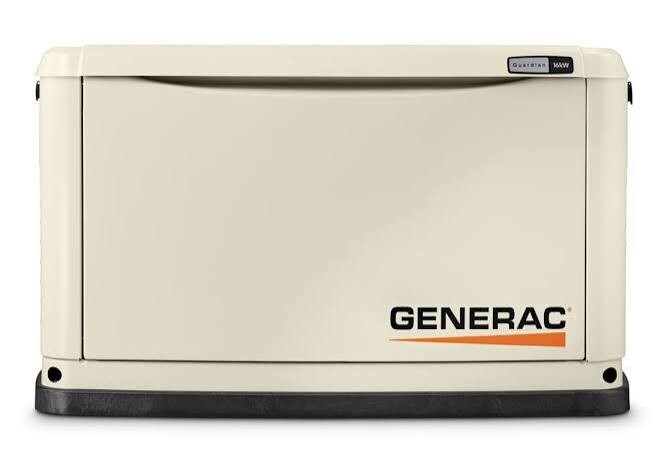
Provide enclosure photos so the layout can account for separate doors, panel edges and other details. Tell the designer which areas matter most from the normal viewing position. Do not assume a logo can simply be enlarged across every part of the enclosure.
Keep preview files and production files together
- Original logo and image files, plus a small preview copy when useful.
- Approved text and brand color references.
- Photographs of the actual generator and the faces to be reviewed.
- A short note identifying the preferred concept and requested changes.
The Studio accepts PNG, JPG and WEBP images for a local preview. Keep any vector originals for the later artwork review. Use artwork you own or have permission to use, and identify any reference that is inspiration only. Uploading into the Studio does not send the files to WYG; save and export your concept for a separate handoff.
Related questions
Can I use my own logo or artwork?
Yes. Use artwork you own or have permission to use. The Studio accepts PNG, JPG or WEBP files for a browser-only preview. Keep original production files, especially vector logos, for the artwork review.
Read the related guideAre the generator images finished customer installations?
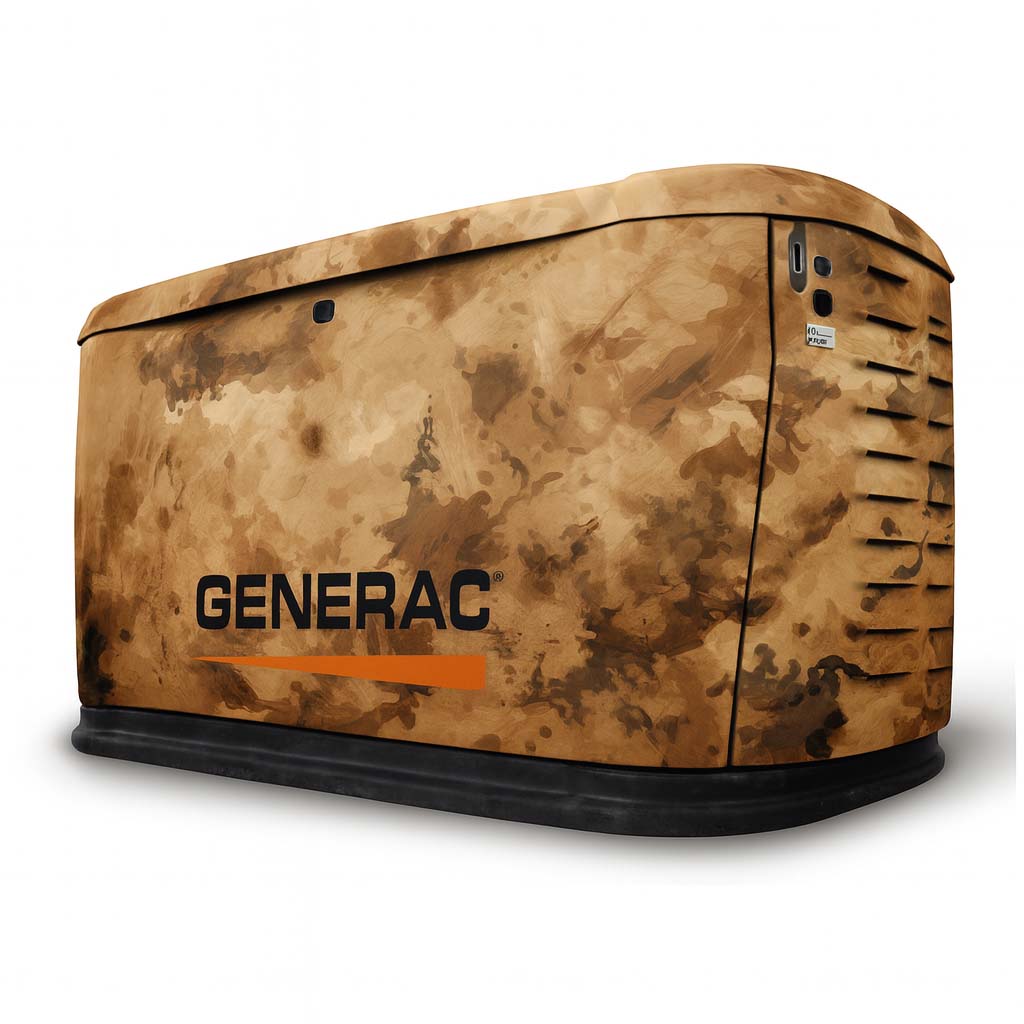
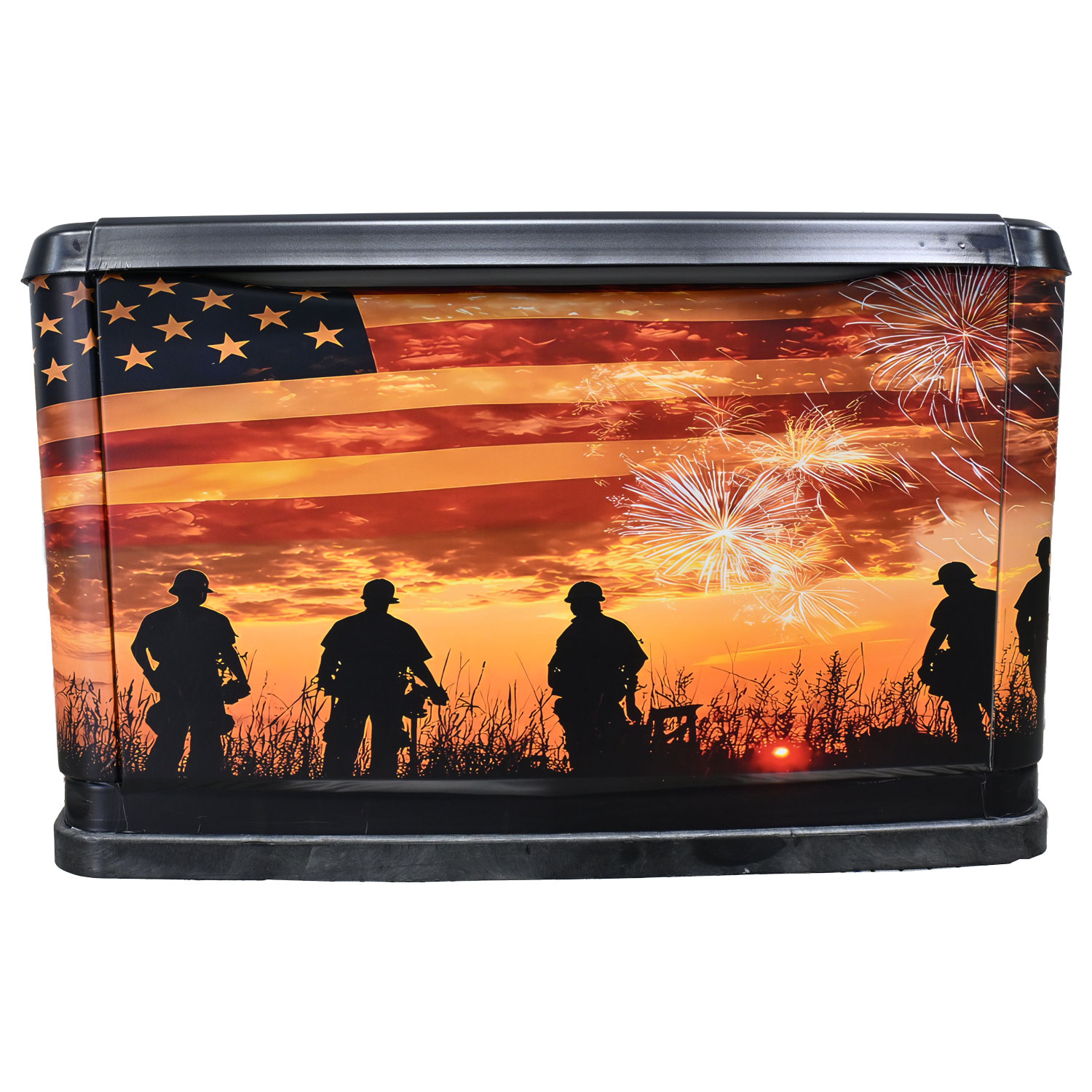
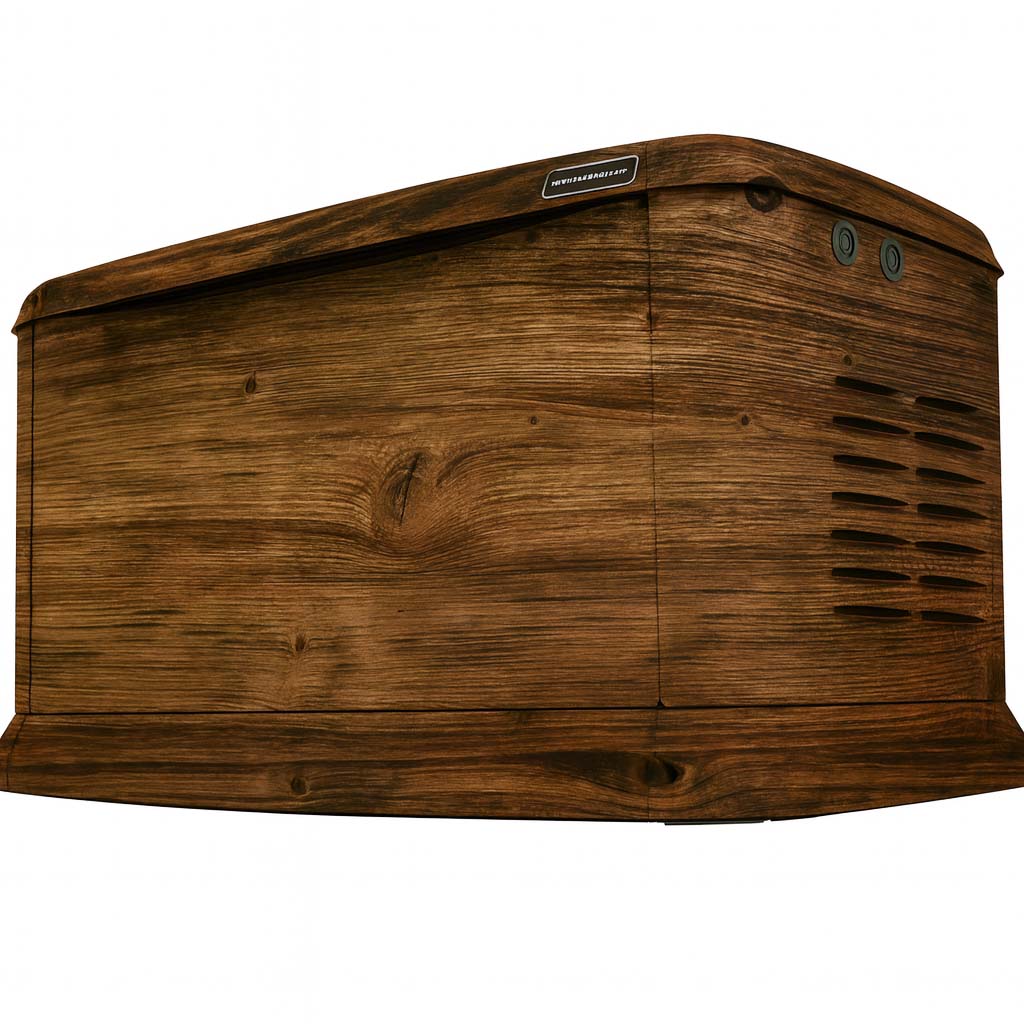
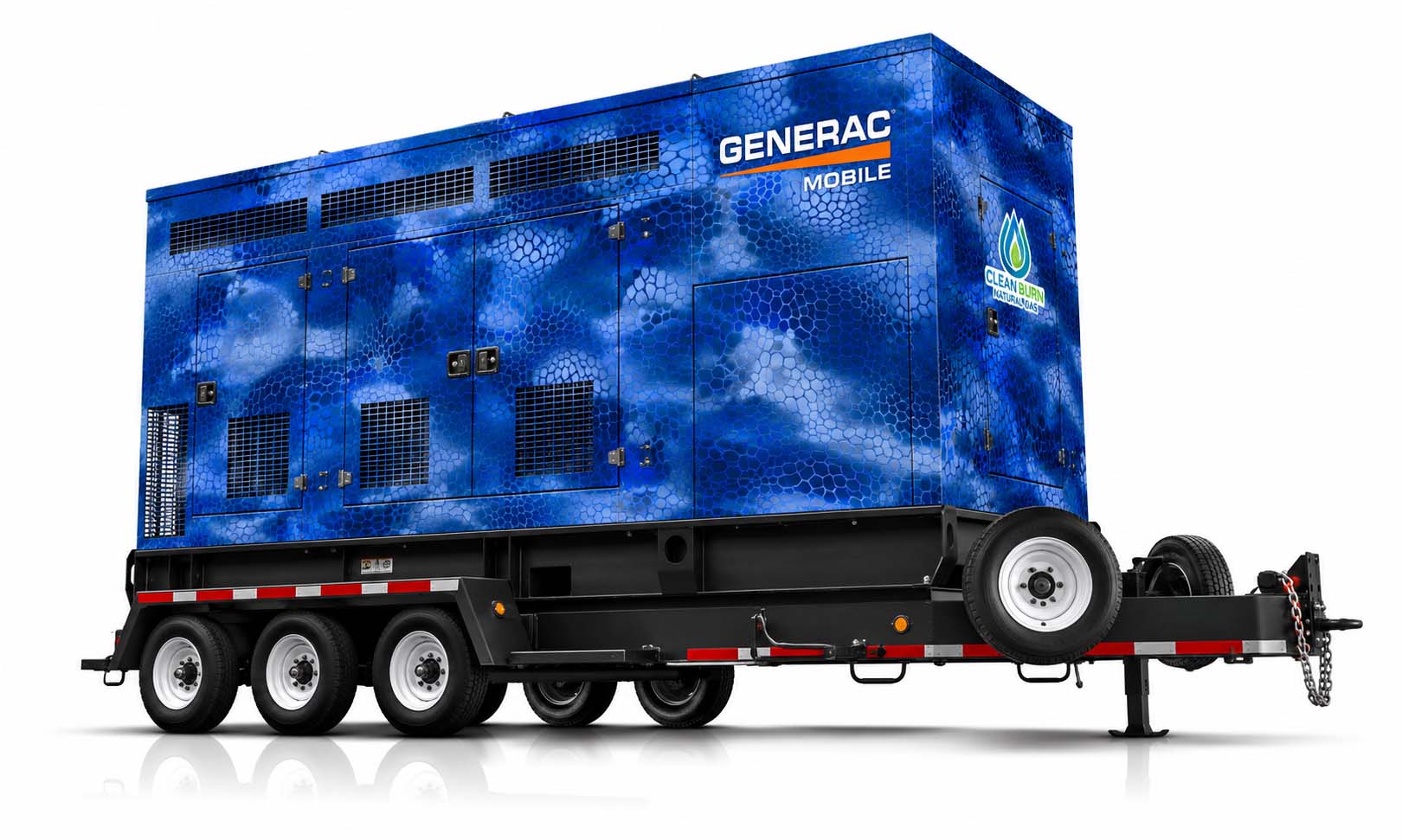
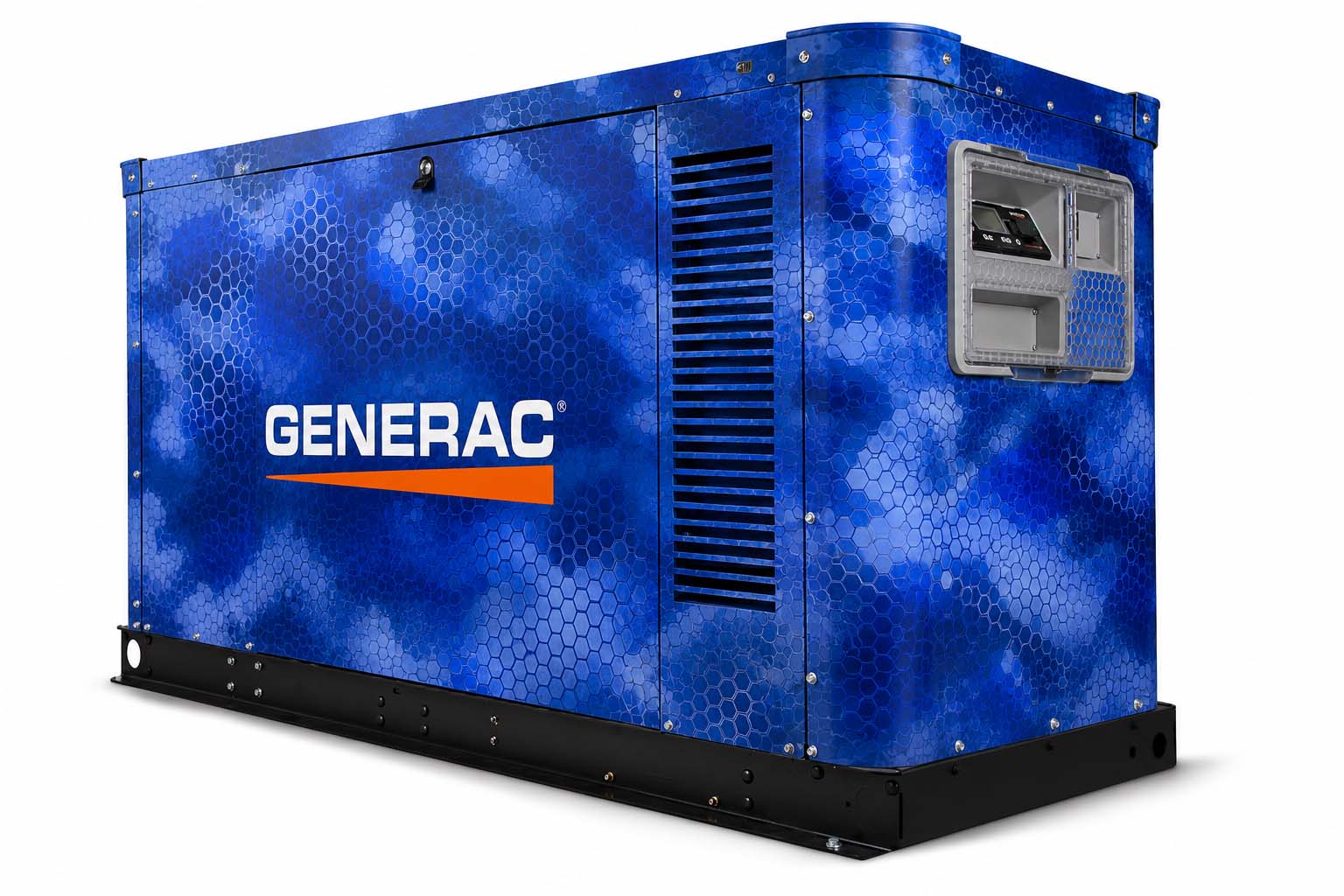
Images marked Concept Preview are design visualizations, including AI-assisted imagery. Final color, scale, placement, fit and appearance may vary. Reference photos show the generator itself and are identified separately.
Read the related guideWhere are my Studio designs saved?
Saved concepts stay in this browser on this device. They are not a cloud account or a submission to WYG, and clearing browser storage can remove them. Export an editable design file to keep a separate copy.
Read the related guideTurn the idea into a project brief.
Choose a design, compare it in the Studio and keep your model details together for review.
On this test site, Studio saves stay in your browser and project drafts are downloaded, not submitted.